
Proxy Server Configuration for Beginners: 2026 Setup
TL;DR: Proxy server configuration for beginners starts with entering a provider’s proxy address, port, and any required authentication in your device or app, then checking that traffic uses the proxy.
A proxy forwards requests along this path: your app → proxy server → destination website; configuring one app does not necessarily route your entire device through it. For personal users and small-business owners setting up their first proxy, this guide uses visual explanations and practical checks to clarify each setting. You’ll learn to distinguish connecting to an existing proxy from hosting your own, verify the connection, and diagnose errors without disabling security protections.
Introduction to Proxy Servers
A proxy server is an intermediary that receives requests from a configured browser or application and forwards them to an internet destination. Proxy servers can improve network privacy and control traffic by placing that intermediary between an application and a website. Only traffic configured to use the proxy follows that route; changing a browser’s settings does not necessarily redirect other applications.
Configured browser → Proxy server → Website
Other application ────────────────→ Website
For personal use, start by identifying the application whose traffic you want to route. For a small business, identify which work applications need a shared traffic policy before changing device settings.
Distinguish two setup tasks: connecting to an existing proxy means entering its address and port; hosting a proxy means operating the intermediary itself. Beginners using a provider’s endpoint usually need the former, not server installation.
Understanding Proxy Server Settings
Proxy server settings tell a device or application which intermediary to use for its internet requests. Manual configuration requires a server address and port: the address identifies the proxy, while the port identifies its connection endpoint. Configure the application that needs the proxy; do not assume every application follows device-wide settings. A browser or tool may use its own configuration.
Think of the connection as a simple path:
Configured application → Proxy address + port → Website
Different devices expose these controls differently. Windows places them under Settings > Network & Internet > Proxy; Android exposes proxy controls within Wi-Fi network settings. Follow instructions for your device rather than copying another platform’s menu sequence.
Before entering anything, distinguish the server address from the port in your provider’s connection details. Keep separate fields separate rather than pasting an entire connection string into the address box.
Step-by-Step Guide to Configuring a Proxy Server
Manual proxy configuration requires an IP address and port, entered in your device’s or application’s proxy settings. Configure only the traffic you intend to route: application-level settings can limit the change to a browser or tool. Common configurations include forward, reverse, and transparent proxies; connecting a personal browser normally uses a forward proxy.
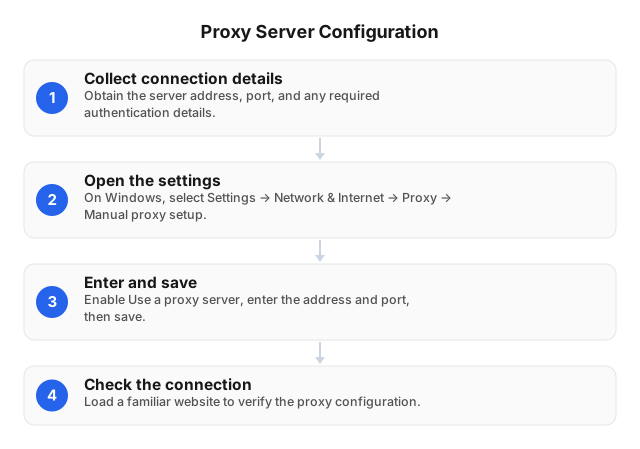
- Collect connection details. Obtain the server address, port, and any required authentication details from your provider or administrator. Connecting to an existing endpoint does not create a server.
- Open the settings. On Windows, select Settings → Network & Internet → Proxy → Manual proxy setup.
- Enter and save. Enable Use a proxy server, enter the supplied address and port in their separate fields, then save.
- Check the connection. Load a familiar website. If loading fails, recheck the address and port before changing other settings.
Common Proxy Server Configurations
Common proxy server configurations apply settings at the operating-system, browser, or individual-application level. Choose the narrowest scope that covers your task: browser-only settings suit browsing tests; system settings suit applications that honor them. A system proxy setting does not mean every application sends traffic through the proxy.
| Configuration | What to enter | Suitable use | Check before testing |
|---|---|---|---|
| Windows manual proxy | Server address and port under Settings > Network & Internet > Proxy | Applications using Windows proxy settings | Save changes; confirm the application uses system settings. |
| Browser-only proxy | Address, port, and supported protocol in browser network settings | Keeping test browsing separate from other traffic | Check for browser-specific overrides. |
| Application-specific proxy | HTTP(S) or SOCKS5 endpoint supported by the application | Routing a particular tool’s requests | Match the endpoint protocol and authentication method. |
Troubleshooting starts with checking network connectivity and confirming the configured address and port.
Troubleshooting Common Proxy Server Issues
Proxy server troubleshooting starts by checking the configured address, port, and whether the affected application actually uses those settings. Change one setting at a time, then retry the same page so you can identify which change fixes the connection. If your network permits a direct connection, temporarily disable the proxy and retry; a failure there suggests investigating the underlying connection first.
Nothing loads: Compare the saved hostname and port with your setup details. On Windows, open Settings > Network & Internet > Proxy and inspect Manual proxy setup.
Only one application fails: Inspect that application’s connection settings. A browser or tool may use its own proxy configuration rather than the operating system’s settings.
Help is needed: Record the exact error, affected application, and whether direct access works. Share those details with support, but redact passwords and authentication tokens.
Security Considerations When Using Proxy Servers
Proxy server security depends on restricting access, protecting credentials, and checking which traffic actually uses the proxy. A proxy connection does not automatically encrypt traffic or protect every application. Keep HTTPS enabled on destination websites, and verify proxy settings separately for each browser or tool handling sensitive information.
For a self-hosted proxy, restrict inbound connections with firewall rules and require authentication; never expose an unauthenticated proxy to the public internet. Install software updates and keep administrative access separate from ordinary proxy access.
Store proxy passwords outside shared screenshots, scripts, and support tickets. If credentials leak, replace them rather than merely restarting the connection.
Treat unexpected certificate warnings as a reason to stop, not click through. Review provider logging policies before routing business data, minimize retained logs, and follow applicable laws and destination-site terms.
Conclusion and Next Steps
Proxy server configuration is ready for everyday use only after the intended browser or application connects successfully and you know how to restore its previous settings. Validate the setup in the application you actually use before extending it to other devices. A browser test does not establish that every application sends traffic through the proxy.
Save a configuration note containing the proxy address, port, protocol, authentication method, and any bypass entries. Keep passwords out of shared screenshots; record where credentials are stored instead.
For your next change, adjust only one setting, repeat the same task, and record the result. If connectivity fails, restore the last working configuration before changing anything else. For a small business, give colleagues a rollback instruction alongside the setup instructions—not just a screenshot of the enabled proxy.
Related reading
FAQ
How do I set up a proxy server?
To connect to an existing proxy server, enter its address and port in your device’s or application’s proxy settings, then configure authentication if required. On Windows, open Settings > Network & Internet > Proxy, enable manual proxy setup, enter the connection details, and save. Test the connection in the application you intend to use, because some applications manage their own proxy settings. Connecting to a provider’s proxy does not require hosting a server yourself.
What are proxy server settings?
Proxy server settings tell a device or application which intermediary server to use, including its address, port, protocol, and authentication method. The address identifies the server, while the port identifies its listening endpoint; both must match the connection details supplied by your provider or administrator. Match the protocol as well as the address: an HTTP(S) endpoint and a SOCKS5 endpoint are not interchangeable unless the application supports the selected protocol.
How do I troubleshoot proxy server issues?
Troubleshoot proxy connection problems by checking the address, port, protocol, and authentication, then testing whether the same application connects with the proxy disabled. If direct access works but proxy access fails, check whether the provider requires a username and password or an approved source IP address. An IP whitelist can stop matching after your public IP changes, so confirm the current address is authorized. If only one application fails, inspect its own proxy configuration.
What are the security risks of using a proxy server?
A proxy server can expose unencrypted traffic to its operator, and an unsecured server you host can allow unauthorized use of your connection. A proxy connection alone does not guarantee encryption: use HTTPS destinations and do not install an unfamiliar root certificate simply to resolve a connection error. For a small business, restrict proxy access with authentication or an IP whitelist, protect credentials, and review the provider’s data-handling policy before routing sensitive traffic.
Can I use a proxy server on my phone?
Yes, you can configure a proxy through your phone’s Wi-Fi network settings, although application support and menu labels vary. On Android, edit the connected Wi-Fi network and look for proxy settings; on iPhone, open that network’s details and select Configure Proxy. A Wi-Fi proxy setting does not automatically apply to cellular data, and some apps may ignore it. Test the specific app on the intended network rather than assuming all phone traffic uses the proxy.
This article was written by the EProxies team and reviewed against our editorial quality standards before publishing.