
Setting Up Proxy Servers on Popular Operating Systems: 2026
TL;DR: Setting up proxy servers on popular operating systems starts with distinguishing endpoint configuration from hosting a proxy: configure the approved endpoint or PAC URL, then verify which applications actually use it.
For IT administrators managing network security and outbound access, this guide covers Windows, macOS, and Linux configuration, with troubleshooting for authentication failures, connection errors, and applications that ignore system settings. Follow the steps to validate traffic routing and choose between manual and automatic configuration.
Introduction to Proxy Servers
A proxy server is an intermediary that forwards application requests to destinations on a client’s behalf. It can enhance network security by masking the client’s public IP address from destination sites, reducing direct exposure of network addressing. OS-level proxy settings are configuration instructions, not a guarantee that every application’s traffic uses the proxy. Applications must support and honor those settings.
For administrators, distinguish configuring a device to use an existing proxy from deploying software that runs a proxy service. Entering a hostname and port in an operating system’s settings performs the former; it does not create a listening proxy server.
Before changing settings, define the intended scope:
- Configuration source: Decide whether applications should use OS settings or their own proxy configuration.
- Application coverage: Identify browsers, command-line tools, and background services that require separate settings.
- Privacy boundary: Treat IP masking as limited anonymization—not removal of identifying cookies, account logins, or application data.
With that scope established, configure the relevant operating system and test the applications it supports.
Setting Up Proxy Servers on Windows
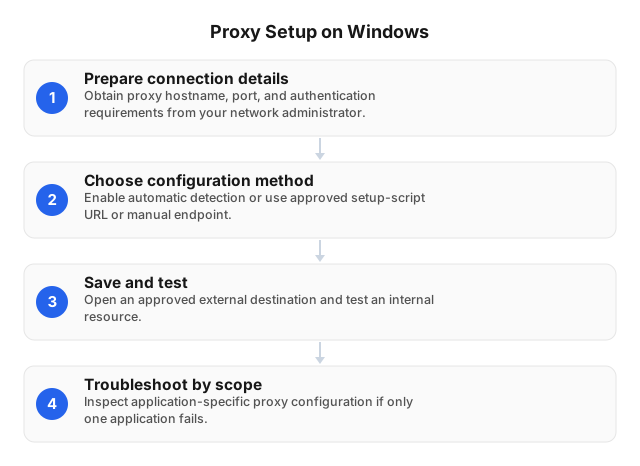
Windows proxy configuration starts in Settings > Network & internet > Proxy, where administrators can select automatic detection, a setup-script URL, or a manual endpoint.
- Prepare the connection details. Obtain the approved proxy hostname, port, authentication requirements, and any internal-address exceptions from your network administrator. Record the existing configuration before changing it.
- Choose the configuration method. Follow Microsoft’s Windows instructions. Enable Automatically detect settings only when your network supports discovery; otherwise, use the organization’s approved setup-script URL or manual endpoint.
- Save and test. Open an approved external destination in the application being managed, then test an internal resource. Confirm the request appears in proxy logs where available.
- Troubleshoot by scope. If only one application fails, inspect its own proxy configuration before changing Windows settings again.
Setting Up Proxy Servers on macOS
On macOS, proxy settings are configured per network service under System Settings > Network > Wi-Fi or Ethernet > Details > Proxies. Unlike a single device-wide configuration, each connection needs its own settings.
- Select the active connection. Open its Proxies panel. Configure Wi-Fi and Ethernet separately if administrators switch between connections.
- Match the endpoint protocol. Enable Web Proxy (HTTP), Secure Web Proxy (HTTPS), or SOCKS Proxy as required. Use the supplied hostname and port—not a full URL—in manual server fields. Enable authentication and supply credentials when required.
- Configure managed routing. For centrally maintained rules, select Automatic Proxy Configuration and enter your trusted PAC URL. Add approved internal destinations to the bypass list to avoid unnecessary proxy routing.
- Apply and verify. Click OK, then test an external destination and an internal application. Include both browser traffic and administrative tools in validation before deploying the configuration.
Setting Up Proxy Servers on Linux
Linux proxy setup usually relies on shell environment variables, desktop settings, or service-specific configuration rather than a universal proxy switch. Configure one client first, verify connectivity, then apply the working settings to the required users and services.
- Set a temporary shell configuration. Replace the placeholders with your administrator-approved endpoint:
export http_proxy="http://PROXY_HOST:PROXY_PORT" export https_proxy="$http_proxy" export no_proxy="localhost,INTERNAL_HOST"https_proxyidentifies the proxy used for HTTPS destinations; its URL scheme describes the connection to the proxy. - Test before persisting.
curl --verbose example.com --output /dev/null
Inspect whether curl uses the proxy. Connectivity failures commonly indicate an incorrect hostname, port, authentication setting, or firewall rule. Avoid sharing verbose logs containing credentials. - Apply settings at the correct scope. Persist exports in the relevant shell startup file. Configure desktop applications separately when necessary; configure systemd services through their service environment, then restart them. Shell exports do not automatically reach existing services.
Advanced Proxy Configurations
Once individual clients work, organize their settings into a managed deployment. The key is to document configuration sources and automatic configuration choices so that changes remain predictable across operating systems.
Separate configuration scopes
Maintain a deployment record identifying each application's proxy source: OS settings, application preferences, or service configuration. Record the expected endpoint and approved exceptions alongside it. Test interactive applications separately from background services; a successful browser request does not establish that another process uses the proxy.
Control automatic configuration
Decide whether automatic detection belongs in your managed Windows configuration rather than leaving its use undocumented. For PAC-based deployments, document the approved URL as part of the same configuration record.
Keep a rollback configuration and validate intended routing after application updates or policy changes. These records also provide a baseline when troubleshooting failures.
Troubleshooting Common Proxy Issues
Proxy troubleshooting starts by comparing the failing application’s effective configuration with the intended proxy endpoint, authentication method, and routing policy. Test the same permitted destination from an affected application and a known-working client, then compare proxy logs. Confirm that the affected application actually uses the configured proxy before changing server settings.
Connection failures and inconsistent routing
For connection failures, verify the hostname, port, protocol, and firewall policy against the approved configuration. On Windows, include automatic detection in the review. On macOS and Linux, compare the affected application’s configuration with OS settings; check Linux environment variables in the actual process context, not just an interactive shell.
Authentication failures and slow requests
For authentication failures, verify the configured authentication method without exposing credentials in logs. For slow requests, compare the same destination through the same endpoint, separating connection establishment from destination response time. Change one setting per test and record the result before proceeding.
Security Considerations for Proxy Servers
Successful connectivity is only part of a secure deployment. Where direct outbound connections must be prohibited, use network controls rather than relying on OS proxy settings as an enforcement boundary.
Restrict proxy listeners to approved networks and authenticated clients. For hosted proxies, choose authentication that fits your egress design: IP allowlisting requires tracking approved public addresses; username-password authentication requires controlled secret storage and rotation. Keep credentials out of shared scripts, shell history, deployment records, and logs.
Treat automatic configuration as security-sensitive. Approve PAC URLs centrally, restrict configuration changes and modification rights, and review bypass rules before deployment. An overly broad exception can send traffic directly when administrators expect proxy routing.
During maintenance, test both permitted and denied requests, inspect logs for unexpected clients, and verify routing after OS updates. Limit log access and retention because request metadata can expose employee activity; apply organizational policy and applicable privacy law.
Related reading
- Impact of Proxy Servers on Internet Speeds: 2026 Fixes
- Understanding Proxy Servers for Beginners: 2026
FAQ
How do I set up a proxy server on Windows?
Open Settings > Network & internet > Proxy, enable manual proxy setup, and enter the proxy server’s address and port. For a managed configuration, use your administrator’s setup-script URL or enable automatic detection only when your network supports it.
What are the steps to configure a proxy on macOS?
Open System Settings > Network, select the active connection, choose Details > Proxies, and configure the required proxy protocol, server address, port, and authentication. Use your organization’s PAC URL for automatic configuration.
How can I troubleshoot proxy server issues?
Check proxy address, port, protocol, and authentication first, then test connectivity from the affected application. Authentication errors suggest checking credentials or IP allowlisting, while timeouts warrant checking DNS, routing, and firewall rules; certificate warnings require investigating trust rather than disabling verification.
What are the security risks of using a proxy server?
A proxy server can expose traffic metadata, mishandle credentials, or permit unauthorized network access if its configuration or operator is untrustworthy. A proxy is not automatically an encrypted tunnel: HTTPS normally protects destination content unless authorized TLS inspection terminates that connection. Protect administrative interfaces, and inspect employee traffic only under applicable law and organizational policy.
How do I configure a proxy server on Linux?
Set http_proxy and https_proxy for applications that support environment variables, or configure the proxy directly in the application or desktop network settings. For example, export https_proxy=http://proxy.example:PORT tells compatible HTTPS clients to use that HTTP proxy; replace the placeholders with your approved endpoint. Shell exports affect that shell and its child processes, so services, package managers, and containers may need separate settings.
This article was written by the EProxies team and reviewed against our editorial quality standards before publishing.