
Proxy Server Setup: Basics for Non-Techies in 2026
TL;DR: Enter your provider’s proxy address, port, and authentication details in the supported device or application settings, then verify the outgoing IP and business workflow. A proxy routes configured traffic; it does not automatically cover every application, encrypt all traffic, or enforce browsing rules.
Pilot the configuration on a noncritical computer. Save its original settings, test each application that needs coverage, and confirm you can restore access before changing staff devices.
Introduction to Proxy Servers
A proxy forwards requests from your computer to a website or service, which generally sees the proxy’s outgoing IP instead of your direct public IP. Connecting to an existing service differs from running a server: connecting requires client settings; hosting also requires software maintenance, access controls, and availability management.
Picture the connection
Configured requests and responses travel through the intermediary shown below. Applications that ignore proxy settings may connect directly, so this diagram does not describe every connection from your computer. Check the browser and each business tool separately; system-level configuration alone is not proof of coverage.
Your computer → Proxy server → Website
Your computer ← Proxy server ← Website
Know what you are configuring
Choose a managed service to obtain connection details without maintaining server software. Host your own proxy only if you can secure, update, and monitor it. Neither approach automatically creates company-wide filtering: that requires policy-enforcement software and controls that prevent users or applications from bypassing it.
- Existing service: Configure authorized devices or applications.
- Self-hosted server: Install software, restrict access, maintain updates, and connect authorized devices.
Never expose a self-hosted proxy publicly without authentication and access restrictions.
Why Use a Proxy Server?
A proxy can hide your direct public IP from destination websites and let compatible tools access content through another location. Filtering-capable software can enforce browsing rules, but residential IP routing and employee web filtering are separate capabilities. Choose the service according to the task, not the proxy label.
For an office computer, domain filtering might block malicious sites while allowing accounting and supplier websites. Confirm that the service includes those controls; residential routing alone does not provide them.
IP masking does not prevent phishing or secure a compromised laptop. Keep HTTPS, software updates, and account protections enabled.
If you collect browsing logs, restrict access and explain monitoring to employees. Retain only what the business needs.
Types of Proxy Servers Explained
Select by traffic support, IP source, and deployment purpose; these labels can overlap. A residential proxy may also be a forward proxy supporting HTTP(S) or SOCKS5. Employee browsing controls require filtering features, while localized storefront checks require suitable exit locations and a protocol supported by your application.
| Type or label | Meaning | Business use |
|---|---|---|
| Forward proxy | Handles users’ outgoing requests | Employee web access, with filtering-capable software |
| Reverse proxy | Sits in front of your website | Incoming website traffic |
| Residential proxy | Uses residential IP addresses | Localized storefront checks |
| HTTP(S) proxy | Handles supported web connections | Compatible browsers and tools |
| SOCKS5 proxy | Relays traffic from compatible applications | Tools with explicit SOCKS5 support |
EProxies supports HTTP(S) and SOCKS5, with 72M+ residential IPs across 195+ countries. Protocol support does not establish filtering or encryption for every connection.
Step-by-Step Guide to Setting Up a Proxy Server
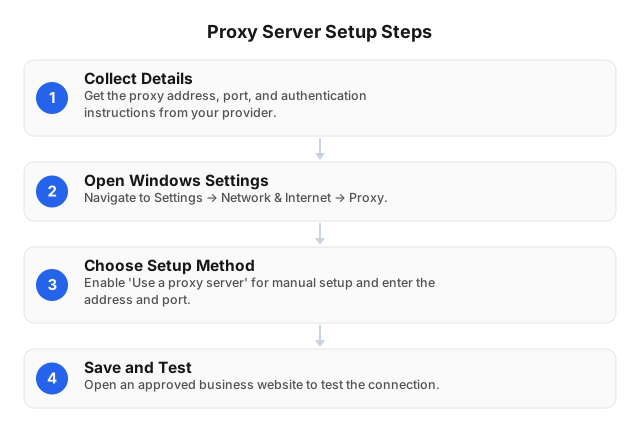
To connect Windows to an existing service, obtain the provider’s settings, configure the supported connection method, and verify traffic before rollout. Start on a noncritical computer and preserve its original configuration. These steps configure a client; they do not install server software or enforce company-wide browsing rules.
- Collect connection details: Hostname or IP address, port, protocol, and authentication instructions.
- Save the original settings: Keep a rollback record without exposing credentials in screenshots.
- Open Windows settings: Go to Settings → Network & Internet → Proxy.
- Select the supplied method: For manual setup, enable Use a proxy server and enter the address and port. Use automatic setup only with an approved configuration script.
- Configure authentication: Follow instructions for credentials or public-IP authorization. Configure SOCKS5 in a compatible application rather than assuming the Windows proxy screen supports it.
- Save and test: Verify the application before configuring other devices.
A practical verification workflow
Record the public IP displayed by an IP-check page in the application before enabling the proxy. Enable it, reload that page, and record the reported exit IP. Then open an approved business website and complete its normal sign-in and navigation. This separates routing verification from application usability.
| Check | Record | Watch for |
|---|---|---|
| Baseline | Direct public IP and website access | An existing network outage |
| Proxy enabled | Reported IP, selected endpoint, errors | Unchanged IP: possible bypass or ignored settings |
| Business workflow | Sign-in and navigation | Login loops or session interruptions |
| Application coverage | Results for each required tool | Browser success while another tool connects directly |
| Rollback | Access after restoring settings | Proxy settings left behind |
Keep the exit IP stable during comparison if supported. On the pilot device, temporarily disable the configured proxy endpoint without changing the application’s proxy settings, then retry the approved site. Continued access may indicate direct fallback or bypass; investigate before rollout. Restore the endpoint afterward. This is a test procedure, not a measured performance claim.
Common Setup Mistakes and How to Avoid Them
Incorrect endpoints, unsupported protocols, failed authentication, and incomplete application coverage cause common setup failures. Compare settings with the provider’s instructions and test the tool that will use them. Change settings individually so you can identify the cause instead of losing track of which adjustment restored access.
Keep address and port in separate fields. Remove copied spaces; never paste a configuration-script URL into the manual address field.
For public-IP authorization, allowlist the office’s current outbound IP. A connection change can invalidate previously working authorization.
Confirm baseline internet access if policy permits. A Wi-Fi outage can resemble a proxy failure; avoid piloting on checkout or booking computers.
For authenticated workflows, confirm whether a stable exit IP is required. Rotation can interrupt sessions and does not replace compliance with website access rules.
Troubleshooting Common Proxy Server Issues
Inspect the affected application’s settings, then verify endpoint, port, protocol, and authentication. Retry the same approved website after each change. If policy permits, compare direct access: failure on both paths suggests a network or destination problem rather than an isolated proxy issue, but does not identify its cause.
Match the symptom to the fix
Use the error message and scope of failure to select the next check. Problems across applications suggest a shared endpoint, network, or authentication issue; an isolated failure points toward application compatibility or configuration. Remove passwords and authentication URLs from screenshots before sending them to support.
- Nothing loads: Recheck address and port, conflicting setup methods, and firewall rules.
- Repeated authentication prompts: Verify credentials or the current allowlisted public IP.
- An isolated app fails: Inspect its own proxy settings and protocol support.
- Timeouts: Check endpoint reachability, firewall rules, and DNS resolution.
- Certificate warnings: Stop and ask your administrator or provider to verify the connection; do not dismiss the warning.
Restore the approved configuration after troubleshooting.
Visual Guide: Proxy Server Setup
Match each provider value to its field rather than pasting the entire connection string into the address box. Windows configuration starts at Settings → Network & Internet → Proxy. Application-level settings may also require a protocol selection; HTTP(S) and SOCKS5 options are not interchangeable.
Configured application → Proxy → Website
- Address: Provider hostname or IP—not the destination website.
- Port: Provider’s supplied port.
- Authentication: Supported credential fields, authentication prompt, or provider IP allowlist.
- Protocol: Option supported by both provider and application.
For automatic setup, enter the approved configuration-script address instead of a server hostname.
Related reading
Use the configuration guide for connection steps and the privacy guide to assess protection limits. Before expanding beyond the pilot, check application coverage, authentication, and browsing-log handling. A successful browser connection establishes neither complete device coverage nor workplace policy enforcement; those require separate verification and deployment controls.
- Proxy Server Setup for Privacy and Security in 2026
- Step-by-Step Guide to Set Up a Proxy Server in 2026
FAQ
Device connections, server hosting, and workplace filtering require different configurations. These answers address connecting to an existing service and verifying that traffic follows the intended route. For staff-wide deployment, check application coverage and enforcement separately; a browser test cannot establish that other tools use the proxy or obey browsing rules.
What is the easiest way to set up a proxy server?
Connecting to a managed service is easier than hosting your own proxy. On Windows, enter its address and port in the manual proxy settings and follow its authentication instructions. Use automatic setup only with a configuration script supplied by your provider or administrator.
How do I know if my proxy server is working?
Check that the configured application reports the expected exit IP and completes an approved business workflow. Compare its public IP before and after enabling the proxy. Test email, accounting software, and other required tools separately; browser success does not prove those applications are covered.
What are the benefits of using a proxy server?
A proxy can mask your direct public IP and support location-specific access. Employee filtering requires additional management features, not merely a residential connection. Check whether the service provides the controls you need, and retain HTTPS, endpoint security, and account protections alongside the proxy.
Can I set up a proxy server without technical skills?
You can connect to a managed proxy without coding or hosting server software. Obtain the address, port, supported protocol, and authentication instructions before changing settings. Enforcing policies across staff devices, preventing bypass, or diagnosing certificate warnings may still require assistance from an administrator.
What are common proxy server setup mistakes?
Common mistakes include wrong addresses or ports, unsupported protocols, failed authentication, and assuming universal application coverage. Other failures involve conflicting setup methods, outdated IP allowlists, or blocked connections. Preserve the original settings and verify the outgoing IP and business workflow before deploying changes elsewhere.
This article was written by the EProxies team and reviewed against our editorial quality standards before publishing.